Tone
Tones are the easy button. Pick a mood, and FunscriptForge shapes the motion to match — without touching the underlying structure.
A tone is a transform, one of the three families in the picker alongside Behaviors and Structurals. Apply one wherever you are editing — across a whole script, or to selected phrases — and try it first in the Catalog tab, which shows before and after on a canned signal.
(Tone used to be a tab of its own, applied globally before any other editing. It is a transform now, so you choose where it lands.)
The six expressive tones
Six expressive tones, ordered from softest to most intense — each changes how transforms are applied globally. A seventh card, Tame, is a corrective rather than a mood (covered below).
| Tone | Tagline | What it does |
|---|---|---|
| Tender | Slow and close | Soft, slow, shallow strokes. Intimate and present. Beat influence stays low so rhythm fades into the background. For quiet moments and slow scenes. |
| Build | Tension grows | Intensity starts low and climbs phrase by phrase. Beat influence grows with it — early sections barely pulse, later sections drive hard. For scenes that escalate. |
| Tease | Pull back at the peak | Intensity rises toward a peak, then retreats before the payoff. Beat influence oscillates — you feel the rhythm arrive and disappear. For edging and denial content. |
| Edge | Hold there | Intensity locks at a high level and holds. No ramp, no retreat — sustained pressure. Beat influence stays strong until the end of each phrase. For sustained tension. |
| Climax | Everything, now | Full power, full stroke range, urgent pacing. Every beat hits hard. For peak moments, finales, and scenes where restraint is wrong. |
| Dominant | Driving, relentless | Fast, wide, assertive. The device leads and the user follows. Relentless rhythm, no breaks. For content where the scene is in control. |
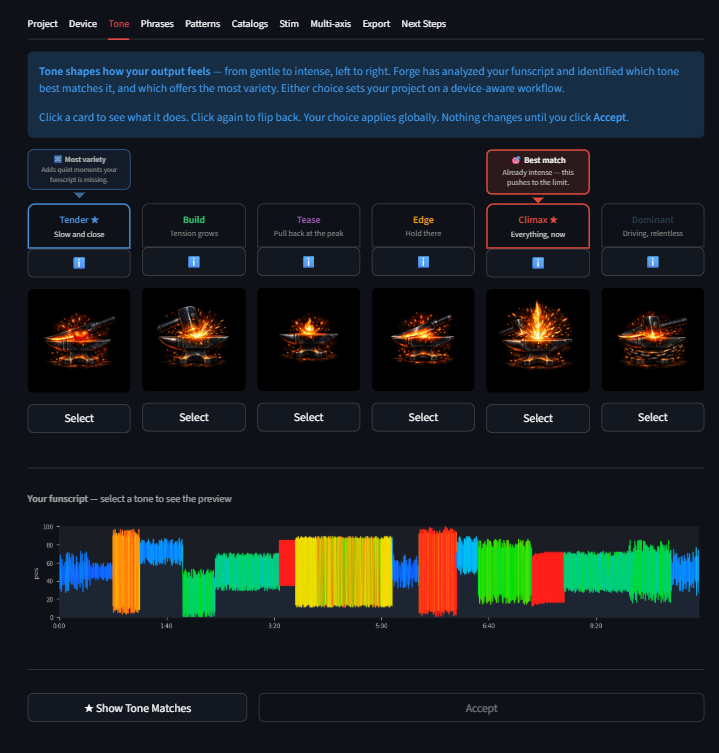 Six tones from Tender to Dominant. Suggestion bubbles highlight the best match and most variety.
Looking to calm something down, not reshape it? The six tones above reshape the feel of your script. The seventh card, Tame, instead gently humanizes a relentless wall of fast strokes so it feels less mechanical — every beat kept, amplitude untouched. It's a light, device-aware softener, not a mood and not a speed cap.
Card interaction
Each tone is a flippable card:
- Front: colored icon and tagline
- Back: full description of what the tone does to your funscript
Click the info button to flip between icon and description. Click Select to choose that tone.
Nothing changes until you click Accept at the bottom of the tab.
Tone suggestions
FunscriptForge analyzes your funscript and suggests two tones:
- Best match — the tone closest to your funscript's existing character. Enhances what's already there.
- Most variety — the tone farthest from your funscript's character. Adds contrast and dynamics your script doesn't have.
Suggestion bubbles appear above the cards with colored arrows pointing to the recommended tones. If your funscript is monotone (>50% of phrases share the same behavioral tag), the Variety suggestion is highlighted as primary.
You can always ignore the suggestions and pick any tone.
Impact slider
Once you select a tone, the Impact slider appears:
- 1.0 = full tone effect (default)
- 0.0 = no change (original funscript)
Dial it back if the tone feels too severe. This scales the entire tone effect proportionally.
Per-tone sliders
Below the Impact slider, each tone has its own contextual controls. These are the parameters with the most audible effect for that tone — derived from sensitivity testing.
| Tone | Sliders |
|---|---|
| Tender | Softness (range compression), Pulse onset (how gradually pulses rise) |
| Build | Build rate, Starting intensity, Arc width |
| Tease | Retreat depth, Oscillation speed, Pulse variety |
| Edge | Hold intensity, Drop point (how late intensity drops) |
| Climax | Peak intensity, Urgency, Pulse sharpness, Frequency push |
| Dominant | Drive, Sweep width, Relentlessness |
Sliders default to values that work well for most scripts. Adjust them if you want to fine-tune the effect.
Before / After preview
Below the sliders, a side-by-side chart shows:
- Before — the funscript as it stands now, including any edits already applied
- After — the funscript with the selected tone applied
The preview updates live as you change the tone or adjust sliders.
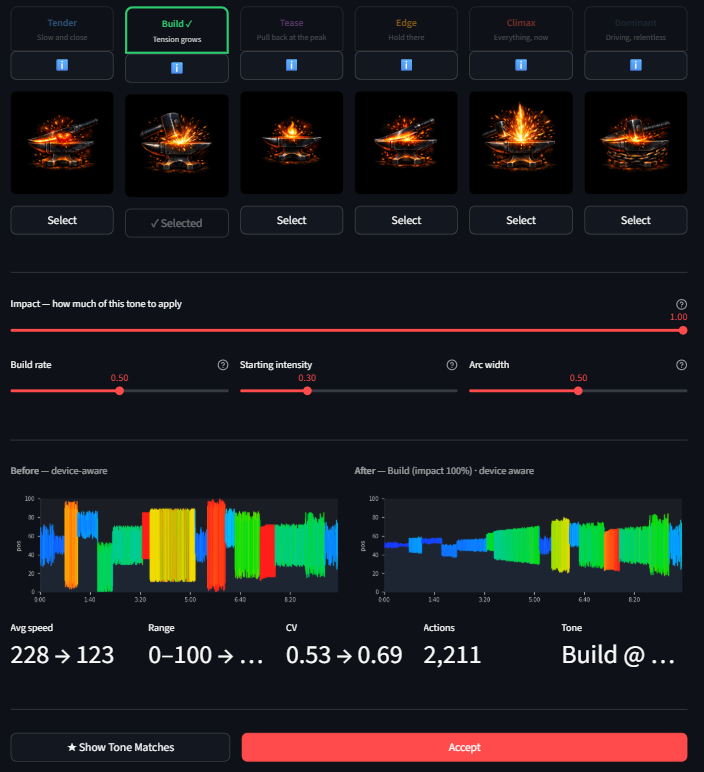 The preview updates live as you select a tone and adjust sliders.
Device awareness
Tones cannot push your hardware past its limits. Device limits are applied later, per device, on the Polish tab — each station clamps the finished motion to what that device can actually do. So a tone shapes feel freely, and Polish is what guarantees the rendered file is safe for the hardware it targets.
Workflow
- Browse the tones in the Catalog tab and try one on the canned signal
- Adjust Impact and any per-tone sliders, and watch the before/after
- Apply it where you want it — across the script, or to selected phrases in Phrases / Stanzas
- Review the before/after for the spans you selected, then Apply
Impact is the same control everywhere: 0 = no change, 1 = the full tone.
Tame
Tame is the seventh tone card — but it's a corrective, not a mood. Where the six expressive tones reshape the feel of your script, Tame does one gentle thing: it humanizes a relentless wall of fast strokes so it reads as device-aware and less mechanical. It keeps every beat and never reshapes amplitude — already-comfortable content passes through untouched.
What it does: Adds subtle velocity variation to long monotone runs (a light groove / humanize pass). It does not drop strokes or cap the stroke rate — removing beats kills the rhythm. If a section is genuinely too intense, center its amplitude with Recenter or Amplitude Scale instead; if it's genuinely too fast to feel meaningful, use Halve Tempo.
Parameter:
| Parameter | Default | Range | Description |
|---|---|---|---|
| Groove | 0.2 | 0.0 – 1.0 | Humanize strength — subtle velocity variation in monotone sections (needs ~60s+ of motion to take effect). 0 = off; 0.2 = gentle; 0.35 ≈ natural. |
Where to use it: Tame applies like a tone — pick it at the chapter level on the Chapters tab, or per phrase/stanza from the transform picker (it's grouped under Tones there too). Most scripts never need it; reach for it when a section feels like an unbroken, machine-like wall.
Related
- Concepts — what phrases and behavioral tags are
- Phrase Editor — fine-tune individual phrases after applying a tone
- Export — export with the tone applied
- Glossary — full term definitions