Pattern Editor
The Pattern Editor lets you fix every phrase of a given behavioral type in one operation. Instead of opening each phrase individually, you select a tag — all drone phrases, or all stingy phrases — and apply a transform to every instance at once.
When to use it
Use the Pattern Editor when:
- Your script has many phrases with the same behavioral tag and you want to apply the same fix to all of them
- You want to review all instances of a problem before fixing any of them
- You want to apply different transforms to different subsets of a tag
Use the Phrase Editor when you need fine-grained control over one specific phrase.
Layout
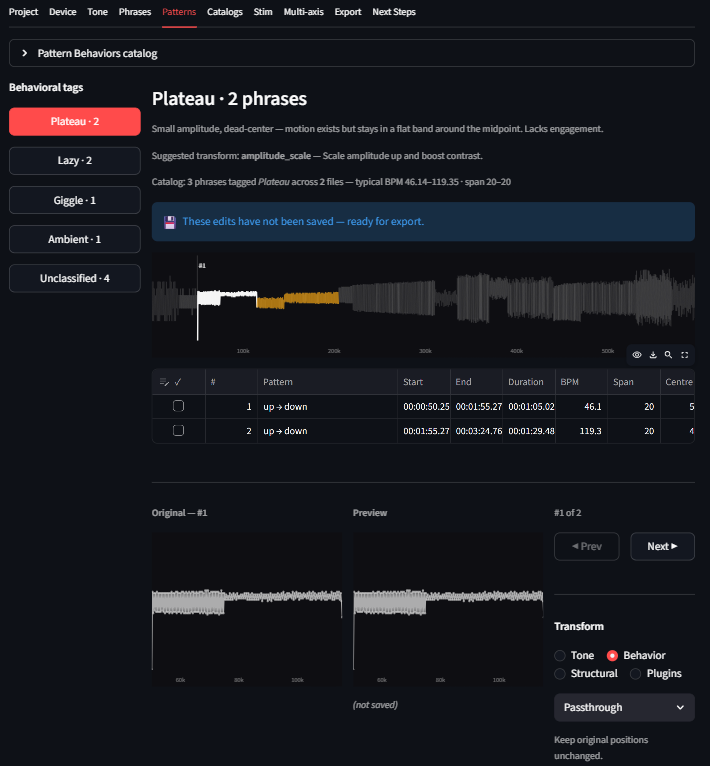 The Pattern Editor. Select a behavioral tag on the left; matching phrases highlight on the chart.
The Pattern Editor has four sections:
Tag selector — buttons for each behavioral tag found in your script, with a count showing how many phrases match. Click a tag to select it.
Selector chart — the full funscript chart with phrases matching the selected tag highlighted. Unmatched phrases are dimmed.
Instance table — all phrases matching the selected tag. Columns: checkbox (include/exclude), phrase number, time, duration, BPM, and transform name (shows the currently applied transform or "—" if none). Click any row to open its detail below.
Instance detail — charts and transform controls for the selected instance. The left side shows the original and preview charts; the right side has the transform dropdown and sliders. Split controls appear between them when applicable.
Workflow
1. Select a tag
Click a tag button in the tag selector. The chart highlights all matching phrases. The instance table populates with every match.
2. Pick an instance to preview
Click any row in the instance table. Its original and preview charts appear in the instance detail below.
3. Choose a transform and tune it
Select a transform from the dropdown. Adjust sliders. The preview updates live.
4. Apply to all
Click Apply to all instances to copy your current transform settings to every phrase in the instance table.
FunscriptForge scales the transform parameters proportionally by phrase duration — a phrase twice as long gets an appropriately adjusted result.
5. Review and adjust individuals
After applying to all, scan the instance table. Each row shows the applied transform. Click any row to open its detail view and fine-tune if needed.
Checkboxes and partial application
Each row in the instance table has a checkbox. Uncheck any row to exclude it from the next "Apply to all" operation. This lets you apply a transform to most instances while protecting the few that need different treatment.
Checkboxes only affect the current "Apply to all" action — they don't permanently exclude rows. After applying, all checkboxes reset to checked.
Pattern Behaviors reference
At the top of the Pattern Editor tab there is a collapsible Pattern Behaviors section — a quick-reference table of every behavioral tag, what it means, and which transforms are recommended for it.
See the full reference: Behavioral Tags →
Related
- Phrase Editor → — edit individual phrases
- Behavioral Tags → — tag definitions and fix recommendations
- Transforms → — what every transform does
- Export → — download once all edits are done