Stim
The Stim tab generates estim channel funscripts from your primary funscript using a character preset. Each character controls how electrical stimulation moves and builds over time.
This tab is only relevant if you selected estim devices on the Device tab. If you're only using mechanical devices (Handy, OSR2), you can skip it entirely.
Prerequisites
The Stim tab requires funscript-tools to be installed alongside FunscriptForge. If funscript-tools is not available, the tab shows an unavailable message and the Export tab will use default settings instead.
The five characters
Each character produces a different sensation pattern. The character name is the API between FunscriptForge, funscript-tools, and restim — pick a character here, and the same personality carries through the entire estim pipeline.
| Character | Tagline | What it does |
|---|---|---|
| Gentle | Soft, slow-building | Narrow electrode arc, soft pulse onset. Intensity builds gradually. Good for intimate or slow content. |
| Reactive | Sharp, tracks every stroke | Wide electrode arc, instant response. Sensation tracks the funscript action closely. Good for fast, intense content. |
| Scene Builder | Builds gradually over the scene | Circular electrode path, slow intensity ramp. Rewards patience — the sensation develops over the full scene. |
| Unpredictable | Random direction changes | Zigzag electrode path, varied character. Keeps you guessing — the sensation changes direction without warning. |
| Balanced | Middle of everything | Circular electrode path, moderate settings. A good starting point for any content. |
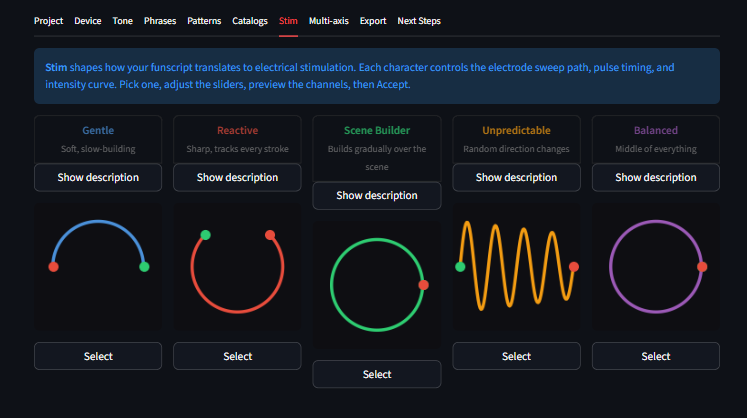 Five estim characters. The electrode path diagram shows how stimulation moves.
Card interaction
Each character is a flippable card:
- Front: colored electrode path diagram showing how stimulation moves
- Back: description of the character's personality and what you'll feel
Click the info button to flip between the path diagram and description.
Sliders
When you select a character, 1-2 contextual sliders appear. These are the parameters most relevant to that character's personality, pulled from funscript-tools presets.
The slider labels and ranges vary per character. Defaults are tuned for typical content.
Preview and Accept
- Preview — generates channel files to a temporary folder and shows waveform charts. Use this to hear/see the character before committing.
- Accept — generates the final channel files to your output folder. These are the files that Export will use.
If you Accept a character, the Export tab reuses those generated files directly — fast export.
If you change your mind after Accept, select a different character and Accept again. The files are overwritten.
What gets generated
funscript-tools produces a full set of channel funscripts from your primary funscript:
| Channel | File | Purpose |
|---|---|---|
| Alpha | {stem}.alpha.funscript |
Primary stimulation axis |
| Beta | {stem}.beta.funscript |
Secondary stimulation axis |
| Frequency | {stem}.frequency.funscript |
Pulse frequency control |
| Volume | {stem}.volume.funscript |
Volume/intensity envelope |
| Pulse frequency | {stem}.pulse_frequency.funscript |
Pulse repetition rate |
| Pulse rise | {stem}.pulse_rise.funscript |
Pulse onset timing |
If your funscript includes prostate data, additional prostate-specific channels are also generated (alpha-prostate, beta-prostate, volume-prostate).
Audio rendering
If you selected audio-capable estim devices (legacy 2b/312 or stereostim Tingler/EstimHero/ZC95), the Export tab renders stereo WAV files from the alpha/beta channels. See Export — Audio synthesis for details.
The Stim tab generates the channel funscripts; the Export tab renders the audio from them.
Skipping the Stim tab
If you skip the Stim tab entirely, the Export tab still generates estim channel files — it calls funscript-tools with default settings (equivalent to the Balanced character). You get the full set of channel files without choosing a character.