Getting Started with ForgePlayer
First-time setup, from "I just downloaded this" to "video playing on my monitor and stim coming out the dongle." If you've used VLC + restim separately and want everything on one timeline, this is the path.
What you need
- A Windows / macOS / Linux machine with a working audio output
- One or more USB audio dongles if you're using stim — these are the small USB devices that show up to Windows / macOS as an audio output and feed your stim hardware (any device you'd otherwise plug into restim directly will do; technically these are USB audio DACs — Digital-to-Analog Converters)
- Optional: a second USB audio dongle for a prostate channel (Haptic 2)
- Optional: a second monitor for mirror playback
- Optional: a GPU is not required — integrated graphics play 1080p and typical 4K fine. Any GPU with hardware video decoding (NVIDIA, AMD, or Intel) plays large / high-bitrate 4K videos more smoothly by offloading decode from the CPU
- A scene folder — see The Pack below
Install
Pick a build for your platform and run it. No Python install, no libmpv install — everything is bundled.
- forgeplayer.app — direct download buttons for Windows / macOS on the landing page. (A Linux build exists but is untested — see below.)
- GitHub Releases — same builds, plus older versions and changelogs.
| Platform | File | How to run |
|---|---|---|
| Windows | ForgePlayer-Setup.exe (installer) or ForgePlayer-windows.zip (portable) |
Run the installer (registers .forge double-click), or unzip and run ForgePlayer.exe |
| macOS | ForgePlayer-macos.zip |
Unzip — nothing else to install. Then see the macOS note below: the app isn't notarized yet, so Gatekeeper blocks the first launch |
| Linux (untested) | ForgePlayer-linux.tar.gz |
Extract, run ForgePlayer/ForgePlayer. Builds on every release but has never been dogfooded, so it isn't listed on the website and isn't supported yet — see the note below. |
Linux: builds, but untested
A Linux tarball is produced on every release and attached to the GitHub release page, so you can try it. It is not offered on the website and we don't call it supported, for one honest reason: nobody has run a Linux build end to end yet. Video, audio routing and e-stim output have all been dogfooded on Windows and macOS; none of it has been on Linux.
If you do try it, reports are genuinely welcome — that's what would move it to supported. Linux is planned to be a first-class platform for the 1.0 release.
macOS: getting past Gatekeeper on the first launch
ForgePlayer isn't notarized yet, so macOS blocks it the first time with "ForgePlayer.app not opened" and offers only Move to Trash and Done. There is no Open Anyway button on that dialog and no right-click bypass: macOS 15 Sequoia removed the old Control-click → Open shortcut, so any guide telling you to right-click is out of date.
The reliable way — open Terminal (⌘-Space, type terminal), type
this including the trailing space:
…then drag ForgePlayer.app into the Terminal window to fill in its
path, and press Return. Now open the app normally. This clears the
download quarantine flag so Gatekeeper stops evaluating the app.
Apple's own route, if you'd rather not use Terminal: click Done, open System Settings → Privacy & Security, scroll to the Security section at the bottom, and click Open Anyway next to ForgePlayer, then authenticate. This can re-prompt several times — a PyInstaller bundle contains many nested unsigned binaries and each one may be checked — which is why the Terminal command above is the smoother path.
Also: Safari auto-expands downloads, so you may find ForgePlayer.app
directly rather than a .zip. That's expected, not a failed download.
Code-signing and notarization are on the beta punch list; once they land, none of this will be necessary.
macOS: no Homebrew, and it actually plays now (v0.1.19-alpha)
Don't install Homebrew or run brew install mpv. Older guides — ours
included — told you to, because the app loaded a system copy of the video
engine instead of the one inside the download. It now uses its own. Unzip,
clear Gatekeeper once as described above, and open it. That's the whole
install.
Worth being straight with you if you tried an earlier build: every macOS release before v0.1.19-alpha was broken. The app quit on launch, and on machines where it got that far, Launch Players hung with a black window and a spinning cursor. It wasn't your setup. Both causes are fixed and macOS is now verified end to end on Apple Silicon — video, scene audio, e-stim on a USB dongle, thumbnails, seeking and Close.
Video plays inside the ForgePlayer window, so the on-video control bar behaves the same as on Windows: click the video once for the bar, double-click to close all players.
Not yet verified on macOS: multi-monitor playback. Single-display is what's been tested. If you run ForgePlayer across two or more displays on a Mac, we'd like to hear how it goes.
Windows: keeping the download past SmartScreen
ForgePlayer isn't code-signed yet, so Windows flags it as an unknown publisher — the file is safe, you just have to allow it. In your browser the download may be blocked: open Downloads → ⋯ / Keep → Keep anyway. On first run a blue "Windows protected your PC" box appears: click More info → Run anyway. This is a one-time step per download.
The window opens with five tabs: Library, Live, Setup, Preferences, About — and it lands you on Library.
Go to Setup first, before you touch the Library
ForgePlayer opens on the Library because that's where you'll start every session after the first one. On a fresh install it's empty and nothing can play yet: until your audio devices are assigned in Setup, the stim ports have nowhere to send a signal. Do the 60-second tour below in order — Setup → Preferences → Library → Live.
Run from source (developers)
If you'd rather hack on the code:
- Install Python 3.11+ (3.12 or 3.13 is fine).
- Install libmpv:
- Windows: download the latest mpv build from
mpv.io/installation and place
libmpv-2.dllnext tomain.pyor anywhere onPATH. - macOS:
brew install mpv - Linux:
sudo apt-get install libmpv-dev(Debian / Ubuntu) or equivalent. - Clone and install Python deps:
- Run:
python main.py
The Pack
A "scene" is one folder containing the video, optional sibling audio files, optional funscripts (one or many), and any pinned picks. Sample layout:
my-scene/
  my-scene.mp4                                    <- main video
  my-scene[E-Stim _Popper Edit].mp3               <- pre-rendered stim audio (optional)
  my-scene.funscript                              <- main funscript (1D position track)
  my-scene.alpha.funscript                        <- explicit alpha axis (optional)
  my-scene.beta.funscript                         <- explicit beta axis (optional)
  my-scene.alpha-prostate.funscript               <- prostate channel for Haptic 2 (optional)
  my-scene.prostate.wav                           <- pre-rendered prostate audio (optional)
Drop the folder anywhere readable. ForgePlayer scans it on first Library refresh and remembers it after that.
First launch — the 60 second tour
1. Pick your audio devices (Setup tab)
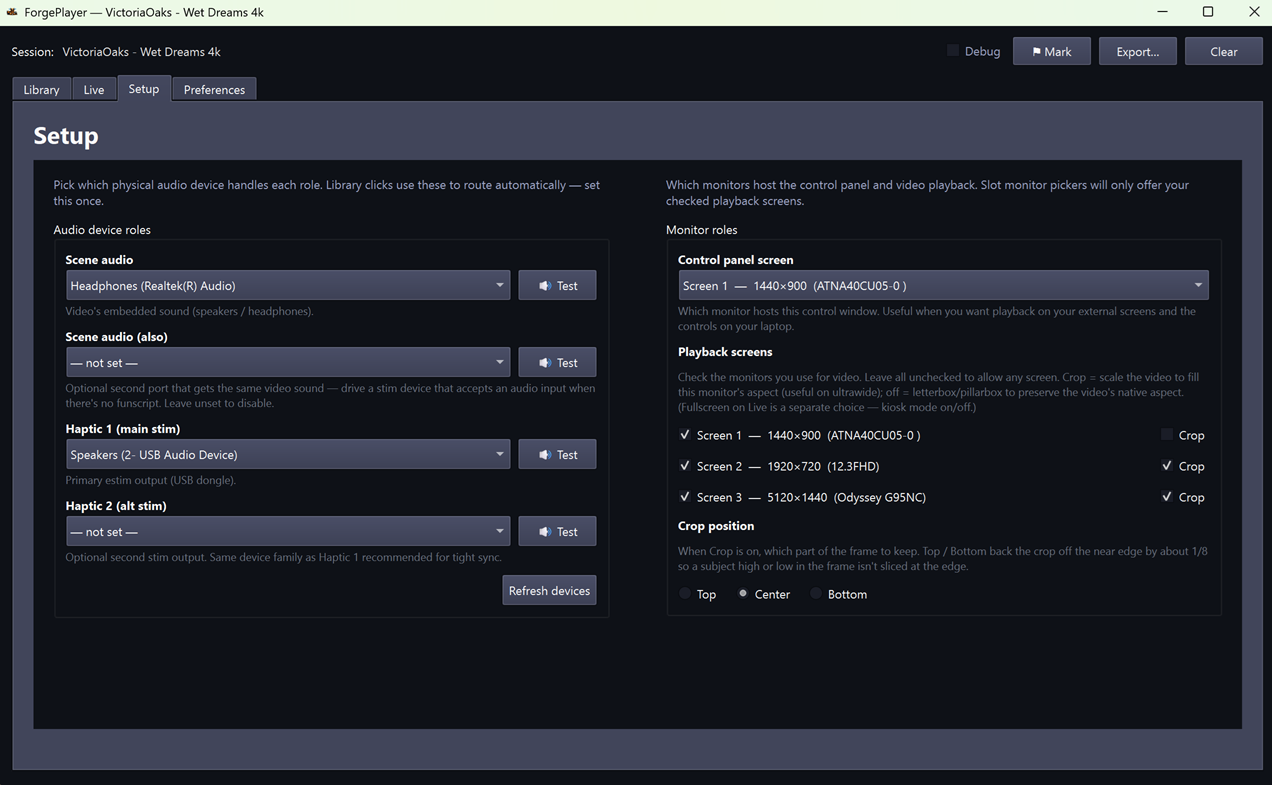
This is the step that makes everything else work — do it before you scan a library. Four dropdowns:
- Scene audio — where the video's mp3 / mp4 audio plays. Usually
your headset or speakers, but a monitor or TV connected over HDMI
works too — those are listed and marked
monitor / TV (HDMI). - Scene audio (also) — optional second port that gets the same video sound. Use it to drive a stim box that takes a plain audio input when a scene has no funscript. Leave it unset if you don't need it.
- Haptic 1 (main stim) — your main stim USB dongle.
- Haptic 2 (alt stim) — second USB dongle for prostate, OR leave unset if you only have one stim box.
The two Scene audio dropdowns show every audio output Windows reports, including HDMI/DisplayPort displays. The Haptic dropdowns list only e-stim-capable outputs — a display is never a stim box, so those stay out of the way. If your dongle isn't there, plug it in and click Refresh devices. Once a device is assigned to one role it's greyed out in the others, so e-stim and your speakers can never land on the same port by accident.
Some displays advertise audio but have no speakers behind it — a monitor maker can wire the HDMI audio path and simply not fit any. Nothing in software can tell that apart from a working output: the device appears, Windows accepts it, and playback runs normally into silence. That's what the Test button is for.
Each row has a 🔊 Test button that plays a short sample through that device — a half-second tone for the scene-audio rows, a gentle stim clip for the haptic rows. Press it now: it's the fastest way to prove the dongle is plugged in, unmuted, and wired to the box before you commit to a scene. If a stim port later reads (unavailable — reselect in Setup), that port stays silent and you just reselect it.
E-stim only ever leaves by a port you assigned to Haptic 1 or Haptic 2. If neither is set, the haptic side stays silent rather than falling back to your speakers, a monitor, or anything else Windows happens to call the default output.
Use wired / USB outputs for stim. Bluetooth devices are selectable and will play, but they're a poor fit for stim: Bluetooth re-encodes audio with a lossy codec, and for stereostim that waveform is the drive signal, not just its fidelity — and Bluetooth latency drifts, so the offset control can cancel the average lag but not the wander around it.
2. Choose a content preference (Preferences tab)
- Funscripts (live synth) — default. Synthesizes stim from the funscript in real time (vendored restim threephase). This is the live path most scenes are built for.
- Sound files (.wav / .mp3) — plays pre-rendered stim audio when a scene ships one instead of synthesizing live. No live synthesis. Pick this if you have older 312/2B-era hardware, or a scene that only ships a stim audio file and no funscript.
When the preferred form isn't available for a scene, both Haptic 1 and Haptic 2 fall back to the other form so you don't get silent stim.
3. Open a scene (Library tab)
- Click 📁 Root… and pick the folder your media lives in. A fresh install has no root set, so the Library starts empty — this is the step that fills it. Scanning runs in the background; the count reads "Scanning…" until it finishes. (Later, ⟳ Rescan re-reads that same folder after you add or remove files.)
- Click a scene tile. A picker dialog opens listing variants: funscript sets, video variants, stim audio variants, subtitles. Pick whichever you want (defaults are sensible — the "matched" tag next to a stim audio file means it shares the scene's main stem).
- Click OK. Picks are saved per-scene and replayed automatically next time you click that tile.
4. Watch (Live tab)
- The Live tab now shows your scene loaded into the slots.
- The Output panel shows what's routing to which device:
Scene Audio → ...,Haptic 1 → ...,Haptic 2 → .... - Click Launch to open the player windows on the configured monitors. The control window stays where you have it.
- Click Play. Video plays on your monitor; stim drives Haptic 1 (and Haptic 2 if configured); audio plays on the scene-audio device.
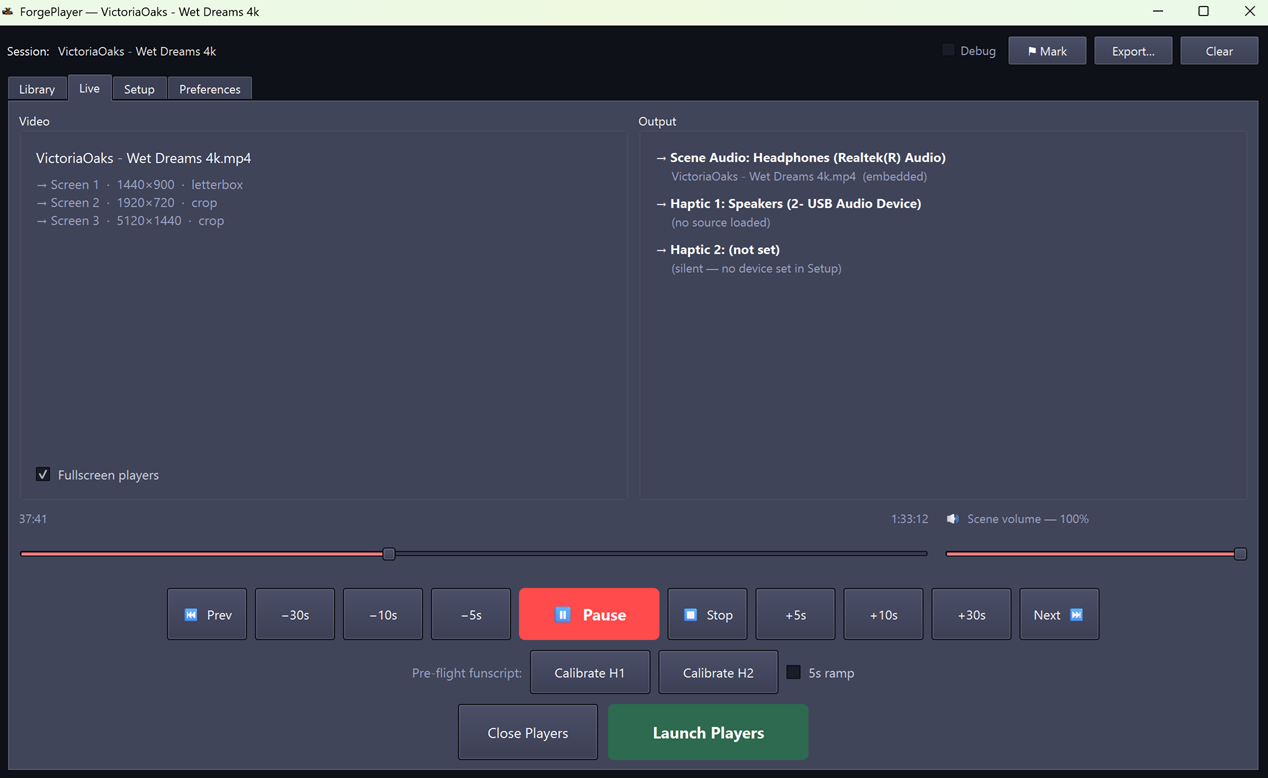
That's it. Seek with the timeline, ±5/10/30 s with the buttons, scene volume with the slider beside the timeline. If the scene has chapters, ⏮ Prev / Next ⏭ jump between them.
The players cover the console — here's how to get back
Fullscreen players sit on top of the control window. Escape brings you back: from a fullscreen player it drops that window to windowed, and from a windowed player it raises the console. You can also click the video once to reveal its overlay bar and press Console. Neither stops playback — you keep your place. Closing is the X, a double-click on a player, or Close Players on the console.
Pre-flight check: Calibrate
Before you wire yourself up, go to the Live tab and click Calibrate H1 (and H2 if you have it set). The button generates a steady test tone (not a sample of any scene audio — a synthesized continuous carrier) and sends it to the configured haptic dongle for ~30 seconds, with an optional 5 s ramp-up if the 5 s ramp checkbox is on. Use this to:
- Confirm the dongle is connected and getting signal.
- Set your levels at the dongle's physical knob before turning the body up.
- Position electrodes / pads with a steady output you can tune to.
Click the button again to stop. The test tone is identical for every scene — it's a signal-path check, not a content preview.
What "Debug" does
Top bar has a Debug toggle. When ON:
- Every UI event, every audio callback boundary, every seek, every auto-resync gets logged
- Logs stream to
~/.forgeplayer/debug-stream-<timestamp>.jsonl - The ⚑ Mark button records a timestamped marker — use it during dogfood when you hear / feel / see something weird, so the post-mortem can correlate
- Export writes a single JSON snapshot of the in-memory event buffer
Off by default; zero overhead when off.
Troubleshooting
- No sound on a Haptic port / it reads "(unavailable — reselect in Setup)" — the saved device was unplugged or its Windows name changed (common after a reboot or USB re-plug). Reselect it in Setup → Audio device roles and click Refresh devices. The port stays silent until a device resolves — ForgePlayer will not route e-stim to your speakers. Still silent with a valid device? Try Calibrate H1 to isolate wiring vs playback.
- Sound plays but there's no picture — largely fixed in v0.1.20-alpha; update first. The cause was ForgePlayer steering video onto an NVIDIA GPU on machines that had no reason for it, which on an Intel + NVIDIA laptop meant the video surface stayed black while audio, timeline and transport all worked normally. If you still see it after updating, go to Setup → Graphics and tick Use the default graphics adapter, then press Launch Players again. ForgePlayer normally steers video onto an NVIDIA GPU when it finds one, to avoid a known AMD driver crash; on some machines that choice can't be resolved and video silently fails to start while audio keeps going. That checkbox hands the decision back to the player. Also worth checking: if you ticked a monitor under Setup → Playback screens that is switched off or unplugged, the video window opens on it and you'll never see it.
- I hear e-stim through my computer speakers, monitor or TV — fixed in v0.1.18-alpha, which was the release that closed it: stim now opens only on a device assigned to Haptic 1 or Haptic 2, and stays silent if neither is set. On earlier builds, leaving the haptic roles unset could send stim to whatever Windows called the default output. If you see this on v0.1.18-alpha or later, please report it — confirm first that Haptic 1 / 2 point at your USB dongle and that Scene audio is a different device.
- HDR video looks washed-out / over-bright — HDR passthrough is disabled for stability; turn Windows HDR off for the playback monitor.
- Bluetooth output is glitchy — Bluetooth plays fine for scene audio, but use wired / USB for stim: A2DP re-encodes the waveform that is the stim drive signal, and its latency drifts.
- Multi-monitor layout looks wrong after moving the control window — known cosmetic limitation; post-alpha fix.
- The app disappeared mid-playback, or when closing a player — both
crashes were fixed in v0.0.16. If you still see one, grab
~/.forgeplayer/faulthandler.logand file an issue; it now records just the thread that failed, so it's short and worth attaching.
Filing a bug report: turn on Debug before reproducing, then attach
~/.forgeplayer/debug-stream-*.jsonl (session events) and, if it crashed,
~/.forgeplayer/faulthandler.log (native crash stack).
Next steps
- User guide — feature-by-feature reference.
- BACKLOG.md (on GitHub) — what's coming next.
- docs/architecture/ (on GitHub) — internal design docs: audio-routing model, restim channel taxonomy, stim synthesis. Read these if you're hacking on the codebase.